Manage Data with AI Agents
With the Mosaic CLI and its skill, an AI agent works with your Mosaic environment as you. It reads and changes data across the managed and custom services of the environment, limited to the permissions you grant. You describe the outcome in your own words, and the agent works out from the services, schemas and permissions of the environment how to reach it.
The Management System remains the main tool for everyday editorial work. An agent gets the work around it done faster: tasks across several services, bulk changes, reports, integrations, and tasks that have no screen yet or take many steps there. You can check everything the agent does in the Management System. This works with AI agents that run commands on your computer and use skills, such as Claude Code, Claude Desktop or Codex.
Set Up Once
You need:
- A management user in the environment with permissions for the services you want to use.
- Node.js 20.19 or later, and an AI agent that runs commands on your computer and uses skills.
1. Allow the Mosaic CLI in the Environment
Applications can only connect to an environment after they are added as OAuth clients.
An administrator with the Identity Service permission OAUTH_CLIENTS_EDIT adds the Mosaic CLI once:
- Open the Management System of your environment.
- Go to Settings > Access Management > OAuth Clients and click + (New).
- Select Mosaic CLI as the Application and click Proceed.
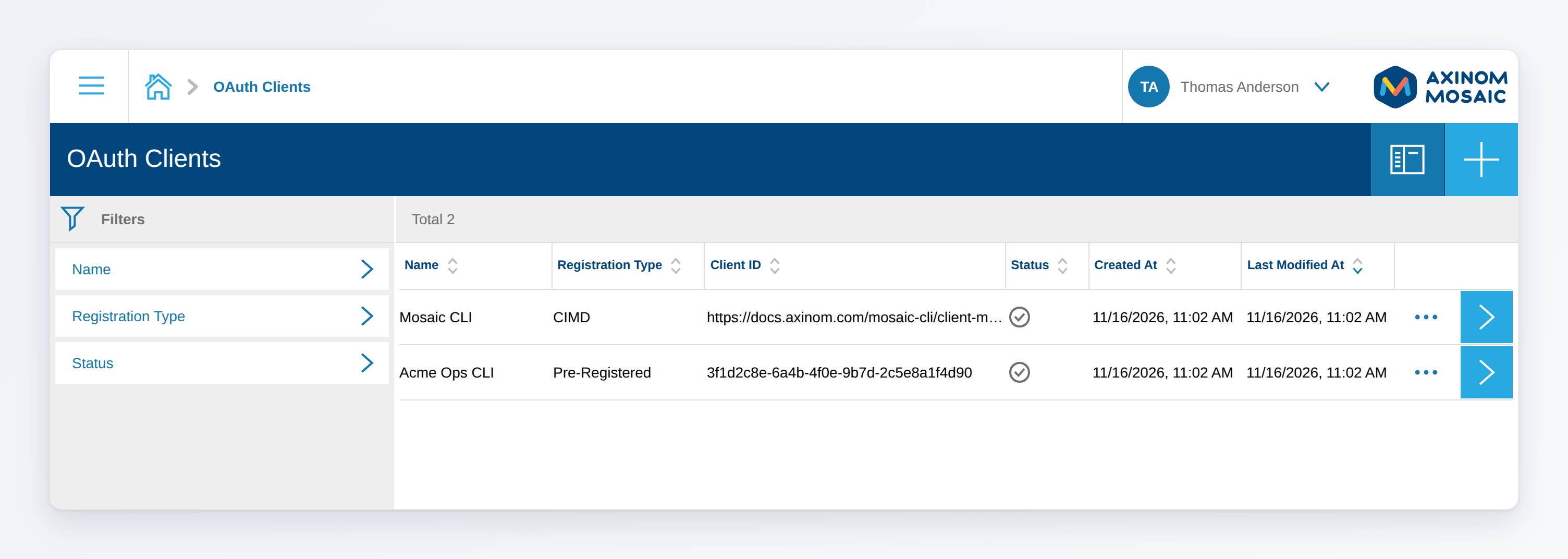
See Manage OAuth Clients for other applications.
2. Install the CLI and Its Skill
npm install --global @axinom/mosaic-cli
mosaic skills install --global
The skill teaches your agent to work with Mosaic through the CLI: it confirms the environment first, finds the services, looks up their schemas instead of guessing, and asks before it deletes or overwrites data you didn't clearly ask for.
mosaic skills install asks which agents to install it for; --global installs it for all your projects.
3. Sign In and Grant Permissions
Sign in and give the environment a name:
mosaic env login --name acme-staging
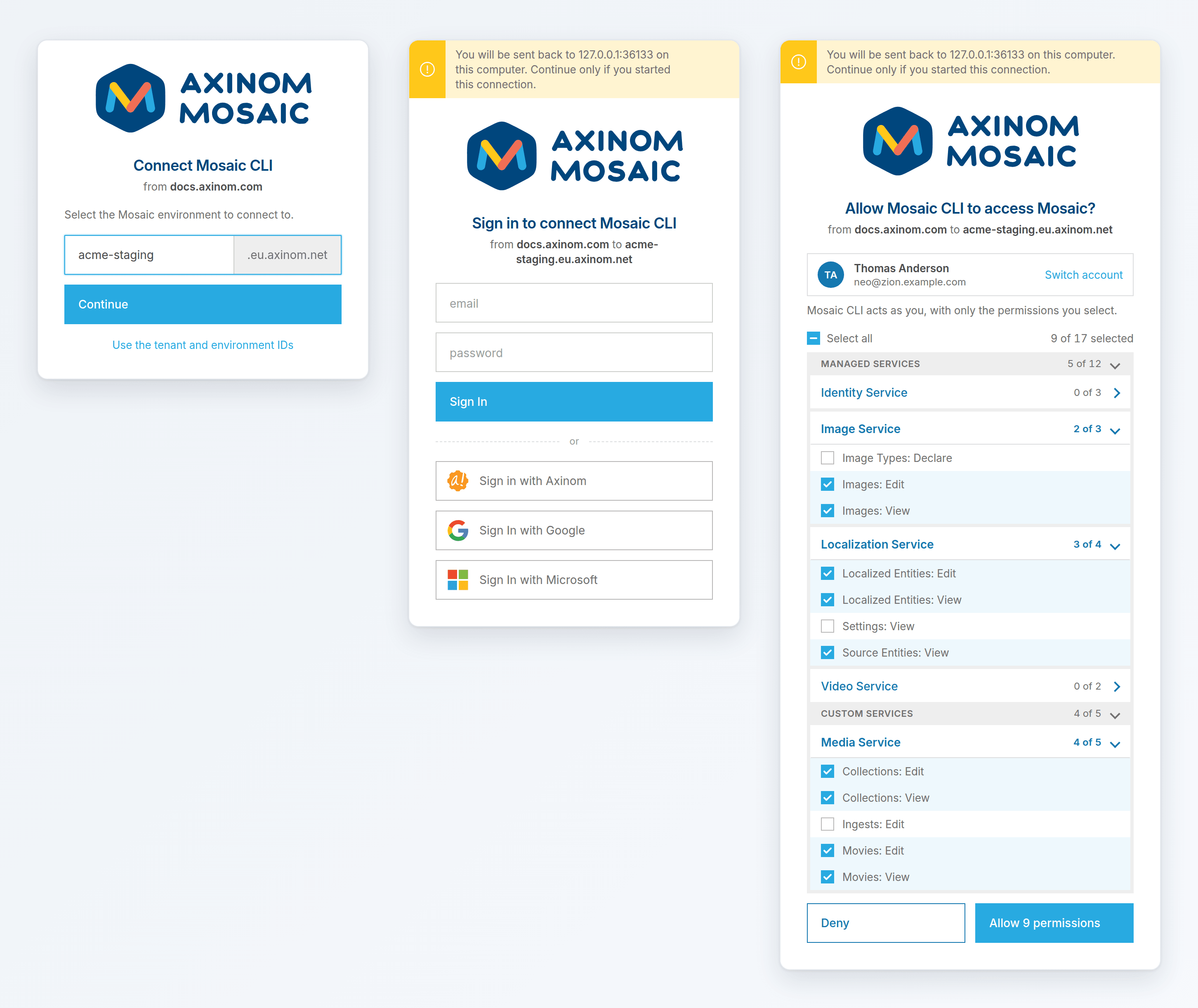
The CLI opens the sign-in in your browser:
- Enter the subdomain of your Management System, for example
acme-stagingif you open the Management System atacme-staging.eu.axinom.net, and click Continue. - Sign in with one of the identity providers of the environment, the same way as to the Management System.
- Select the permissions the agent gets through the CLI, for example the view and edit permissions of the Media, Image and Localization services.
- Confirm with Allow.
Back in the terminal, the CLI confirms the sign-in:
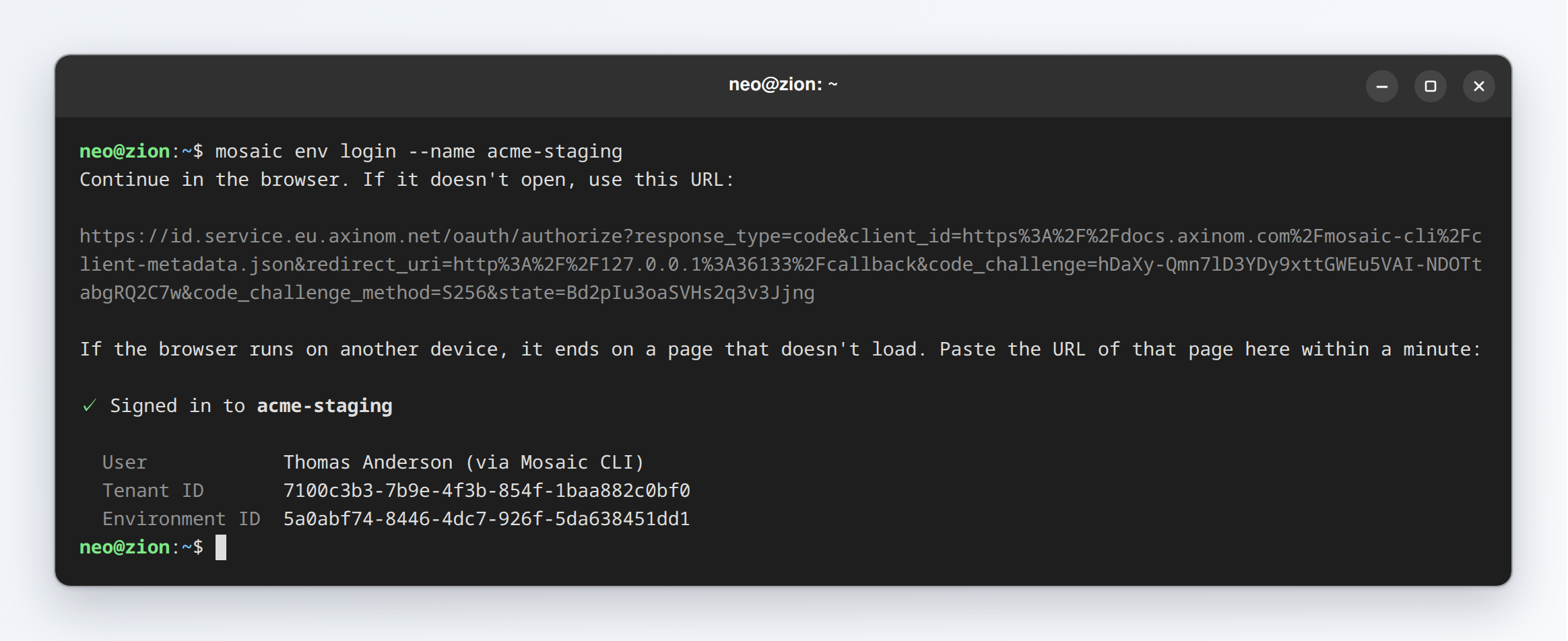
The agent can only do what these permissions allow, and neither the CLI nor the agent sees your password.
The CLI renews its access token by itself; to change the permissions, run mosaic env login --name acme-staging again and select others.
If the browser runs on another device, for example when you work over SSH, run mosaic env login --no-browser and open the link on that device.
After the sign-in, the browser ends on a page that doesn't load; paste its URL into the terminal within a minute.
4. Check the Connection
Start your agent and ask:
Which Mosaic environment are you working on, and what can you do there?
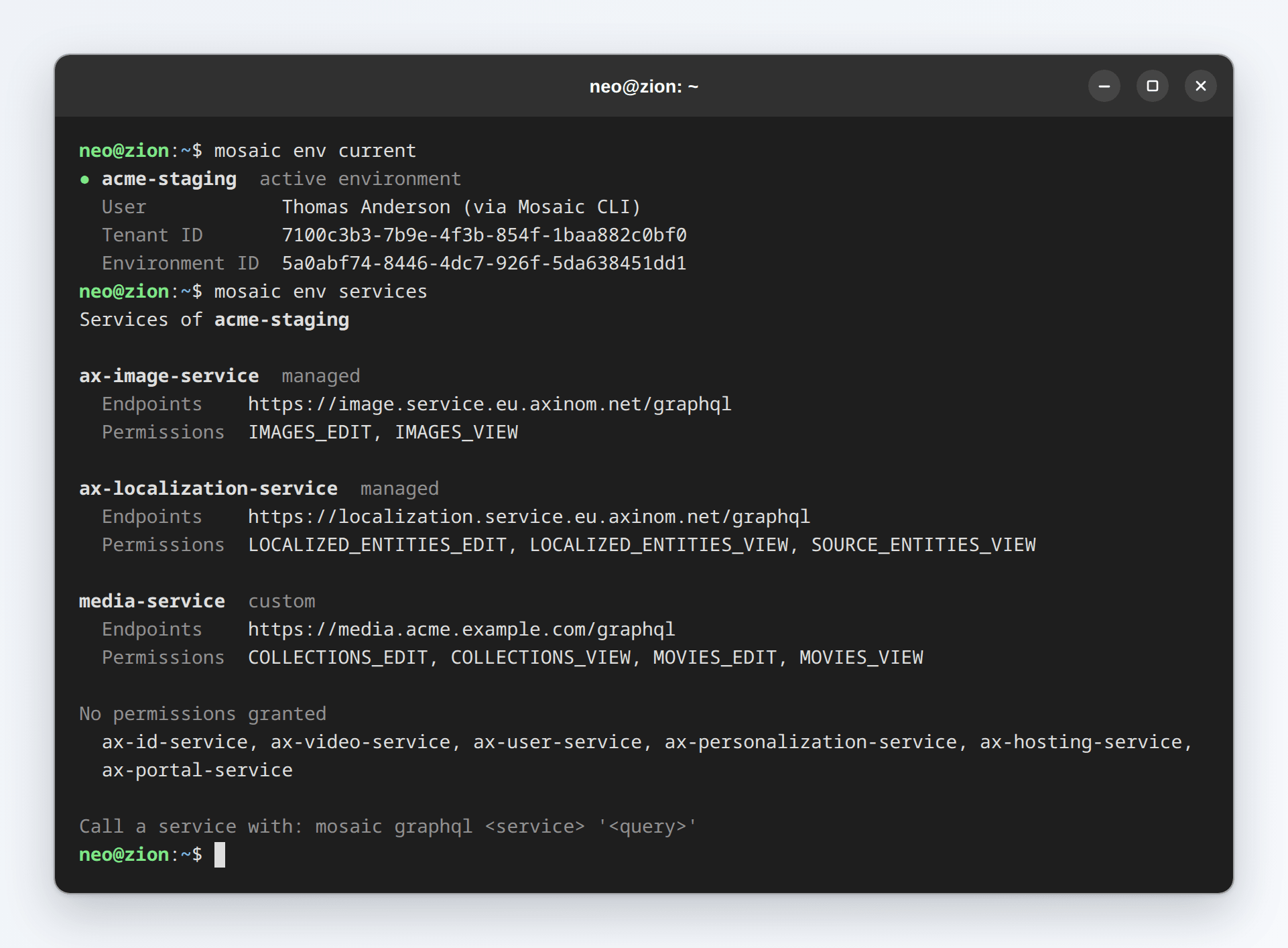
The agent runs mosaic env current and mosaic env services, looks through the schemas of the services, and tells you in plain words what it can read and change there:
Use Cases
The examples use the movies, collections and images of the Mosaic Media Template; describe tasks for your own services and content the same way.
Describe the outcome you want, and name the environment if you work with several.
You don't need to know the services or their APIs: the agent finds the services, looks up their schemas and makes the changes you ask for.
Before it deletes or overwrites data you didn't clearly ask for, or when it is unsure which items a change affects, it shows you what it will change and waits for your approval.
Everything it changes shows you and the Mosaic CLI as the editor, for example Thomas Anderson (via Mosaic CLI) under Last Modified.
Prepare a Themed Collection
Create a "Christmas Movie Nights" collection with all our Christmas movies, ordered by release year, with this cover image: https://images.example.com/christmas-movie-nights.jpg. Write a festive two-sentence synopsis for the collection, and translate the collection into German and Spanish. Show me the collection, the synopsis and the translations, and save them only after I approve.
The agent reads the movies from the Media Service and shows you its proposal. Adjust it in the chat if needed, for example "leave out the animated movies", and approve it. The agent then creates the collection, uploads the cover image to the Image Service and saves the translations in the Localization Service. When you're happy with it:
Publish the collection and its movies. If anything fails validation, tell me instead of publishing it.
Add Cover Images
The folder ./posters has a poster for each of our Matrix movies. Upload each one as the cover of the movie whose title matches the file name, and show me the matches first.
The agent uploads the files to the Image Service and links each image to its movie in the Media Service.
Translate Content
Which published movies have no German title yet? Translate their titles and synopses into German and mark them for review.
The agent saves the translations in the Localization Service, where editors review and approve them as usual.
Find Gaps and Clean Up
Questions that combine several services or many items are quick to ask:
- Reports: "Which published movies have no German title, and which of them have a license that ends this month?"
- Bulk updates: "Add the tag 'classic' to all movies released before 1990. Show me the list first, and update them after I approve."
- Cleanups: "Find the movies whose licenses have all ended and show me the list. After I approve, unpublish them, delete their videos and delete the movies."
- Access reviews: "Which users have the Administrator role, and which roles can publish content?"
- Checks against other services: "Add our catalog service at https://catalog.example.com/graphql, and list the published movies that aren't live in the catalog."
Work with Several Environments
Sign in to each environment under its own name, for example mosaic env login --name acme-prod.
mosaic env list shows the signed-in environments, and mosaic env use selects the one that commands use by default:
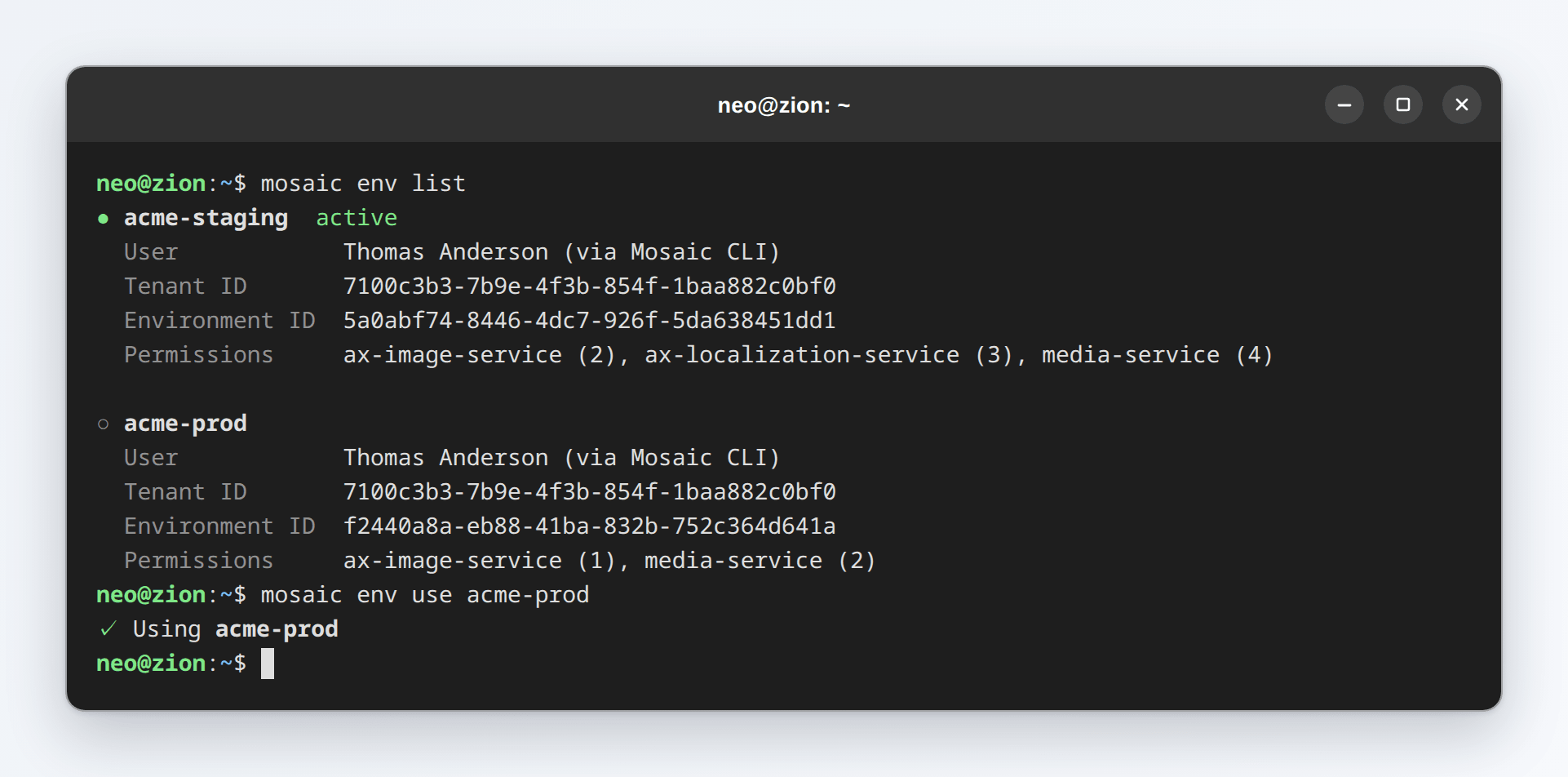
With the skill, the agent tells you which environment it will work on before it starts and passes it to every command. Name the environment in your prompts, for example "In acme-staging, list the movies without a license".
Good Practices
- Grant only what the task needs. To change the permissions later, sign in again under the same name and select others.
- Review before you approve. For bulk changes, publishing and deletions, ask the agent to show you the items first, for example "show me the list, and delete them after I approve".
- Sign out of environments you no longer need.
mosaic env logout --env acme-stagingends the session and removes its tokens from your computer.